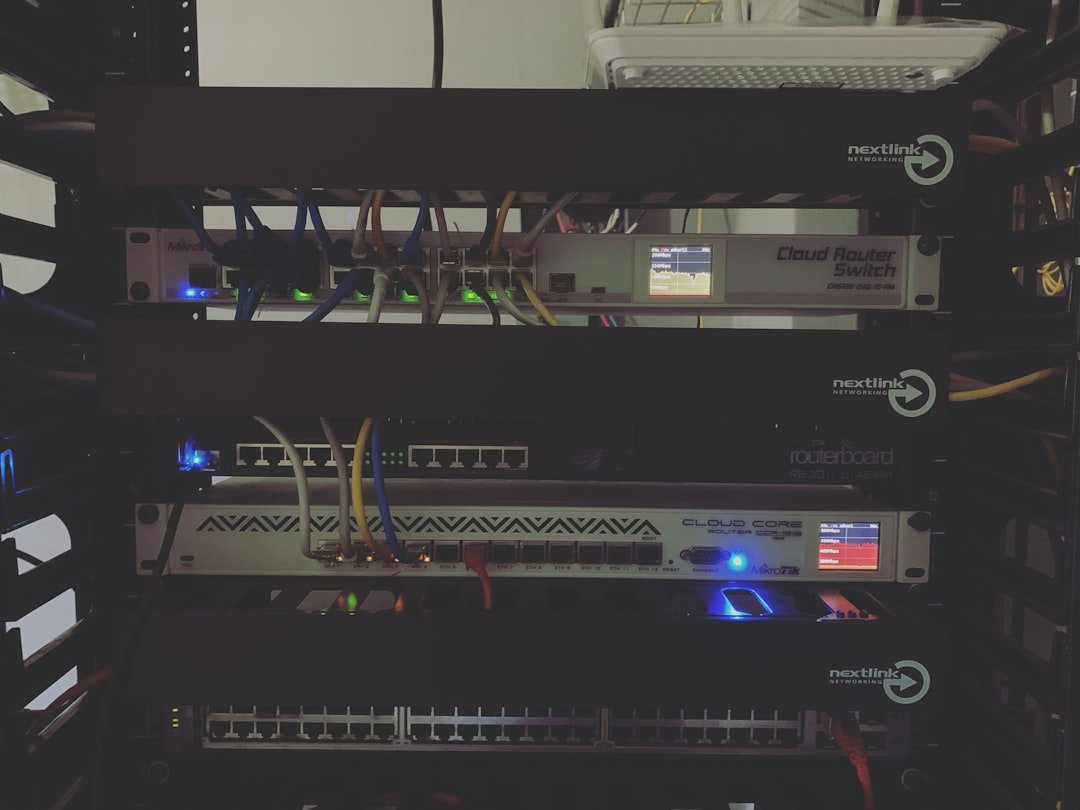
Hey everyone! If you’re running a homelab like me, you know that sinking feeling when something goes down and you don’t find out until you actually need it. Maybe your Plex server crashed during movie night, or your Pi-hole decided to take a vacation right when you’re trying to browse the web. That’s where monitoring comes in, and today I want to talk about one of my favorite tools for the job: Uptime Kuma.
What is Uptime Kuma?
Uptime Kuma is a free, open-source, self-hosted monitoring tool that’s become incredibly popular in the homelab community. Created by Louis Lam, it’s basically a self-hosted alternative to services like UptimeRobot or Pingdom, but without the monthly fees or limitations on how many things you can monitor.
What makes it special? Well, unlike heavy-duty monitoring solutions like Zabbix, Grafana, or Prometheus (which are fantastic but can be overwhelming), Uptime Kuma is designed to be simple. You don’t need to spend hours wrestling with config files or learning a complex new interface. It’s the kind of tool where you can have it up and running in minutes, not days.
The interface is clean, modern, and reactive. It supports dark mode (because we all know homelabbers live in dark mode), and it just works. Plus, it’s got a cute bear mascot, which honestly matters more than I’d like to admit.
Why Your Homelab Needs Monitoring
Before we dive into setup, let’s talk about why you even need this. If you’re running any self-hosted services—whether that’s a media server, a home automation system, game servers, or just a simple website—knowing when something breaks is crucial.
Here’s the thing: services don’t always fail dramatically. Sometimes they just… quietly stop working. A container runs out of memory and crashes. A certificate expires. A database connection times out. Without monitoring, you might not notice until it becomes a problem.
Uptime Kuma gives you peace of mind. It constantly checks your services and lets you know the moment something goes wrong. No more discovering that your NAS has been offline for three days when you go to watch a movie.
What Can Uptime Kuma Monitor?
This is where Uptime Kuma really shines. It’s not just a simple ping tool—it supports a wide variety of monitor types:
- HTTP/HTTPS – Monitor websites and web applications. Check if they’re responding and even verify SSL certificates.
- TCP Ports – Verify that specific services are listening. Great for databases, game servers, or any custom application.
- Ping – Simple ICMP ping to check if a host is alive. Perfect for network devices like routers and switches.
- DNS Records – Monitor your DNS records to ensure they’re resolving correctly. Essential for mail servers.
- HTTP(S) Keyword – Not only check if a page loads, but verify that specific content appears. Useful for catching partial failures.
- Docker Containers – Directly monitor the status of your Docker containers.
- Database Connections – Monitor MySQL, MariaDB, PostgreSQL, MongoDB, and MS SQL Server.
- Steam Game Servers – If you’re hosting game servers, you can monitor them specifically.
- Push Monitors – For services on private networks that can’t be reached directly, they can “phone home” to Uptime Kuma.
- gRPC – For modern microservice architectures.
The monitoring interval can be set as low as 20 seconds, so you’ll know almost immediately when something goes wrong.
Installing Uptime Kuma
The easiest way to get Uptime Kuma running is with Docker. If you’re already running Docker in your homelab (and let’s be honest, you probably are), this is a one-liner:
docker run -d --restart=always -p 3001:3001 -v uptime-kuma:/app/data --name uptime-kuma louislam/uptime-kuma:1Let me break that down:
- –restart=always – Ensures the container comes back up if it crashes or your server reboots
- -p 3001:3001 – Maps port 3001 so you can access the web interface
- -v uptime-kuma:/app/data – Creates a persistent volume for your data
Using Docker Compose
If you prefer Docker Compose (and you should for better maintainability), here’s a simple compose file:
services:
  uptime-kuma:
    image: louislam/uptime-kuma:1
    container_name: uptime-kuma
    volumes:
      - ./uptime-kuma-data:/app/data
    ports:
      - 3001:3001
    restart: unless-stopped
Save that as docker-compose.yml and run docker compose up -d. Done!
Running on a Raspberry Pi
Uptime Kuma is lightweight enough to run on a Raspberry Pi, which is actually ideal for monitoring. You want your monitoring solution on a separate device from what you’re monitoring—otherwise, if your main server goes down, so does your monitoring!
A Raspberry Pi 3 or newer works great. The Pi Zero 2 W can technically run it, but you might experience some UI lag. Just install Docker on your Pi using the standard process, then use the same Docker commands above.
Pro tip: Running Uptime Kuma on a dedicated device means you’ll still get alerts even if your main homelab server catches fire (hopefully not literally).
Setting Up Your First Monitors
Once you’ve got Uptime Kuma running, navigate to http://your-server-ip:3001 in your browser. You’ll be prompted to create an admin account—pick a strong password and save it somewhere safe.
After logging in, you’ll see a clean dashboard. Click the “Add New Monitor” button to get started. Let’s walk through setting up a few common monitor types:
Monitoring a Web Service
For monitoring something like your Jellyfin or Plex server:
- Select “HTTP(s)” as the monitor type
- Give it a friendly name like “Jellyfin Server”
- Enter the URL (e.g.,
http://192.168.1.100:8096) - Set your heartbeat interval (60 seconds is usually fine)
- Click Save
If you’re monitoring something with a self-signed certificate (like Proxmox), check the “Ignore TLS/SSL error” option to avoid false alerts.
Monitoring Network Devices
For routers, switches, or other network equipment:
- Select “Ping” as the monitor type
- Name it something like “Main Router”
- Enter the IP address
- Save
Monitoring Docker Containers
If you want to monitor Docker containers directly, you’ll need to mount the Docker socket. Update your compose file:
volumes:
  - ./uptime-kuma-data:/app/data
  - /var/run/docker.sock:/var/run/docker.sock:ro
Then you can add Docker container monitors that check the actual container status, not just whether a port is responding.
Setting Up Notifications
Monitoring is only useful if you actually find out when something breaks. Uptime Kuma supports over 90 notification services, so chances are your preferred method is covered.
Go to Settings → Notifications → Setup Notification to configure alerts. Here are the most popular options:
Discord
Perfect if you’re already hanging out in Discord:
- In your Discord server, go to Server Settings → Integrations → Webhooks
- Create a new webhook and copy the URL
- In Uptime Kuma, select “Discord” as the notification type
- Paste the webhook URL
- Test it and save
Telegram
Telegram is actually the easiest to set up and works great for mobile notifications:
- Message @BotFather on Telegram and create a new bot
- Save the bot token you receive
- Start a chat with your new bot (this is important!)
- In Uptime Kuma, select Telegram, paste the token, and use the “Auto Get” button to grab your Chat ID
Email (SMTP)
Good old email still works great:
- Select “Email (SMTP)” as the notification type
- Enter your SMTP server details (Gmail users: you’ll need to create an app password)
- Set your From and To addresses
- Test and save
You can set notifications to be “Default Enabled” so they automatically apply to new monitors, or use “Apply on all existing monitors” to enable them everywhere at once.
Advanced: External Monitoring
Here’s something I learned the hard way: if your entire homelab goes down (power outage, internet failure, etc.), your monitoring goes down with it. You won’t get an alert because the thing that sends alerts is also offline.
The solution? Run a small Uptime Kuma instance on a cheap VPS outside your home network. You can get a basic VPS for a few dollars a month, and it serves as an external watchdog. If your home internet goes down, the VPS will notice and alert you.
Some homelabbers combine this with Tailscale to create a secure mesh network, allowing the external instance to also monitor internal services through the VPN tunnel.
Status Pages
One cool feature I haven’t mentioned yet: Uptime Kuma can create public (or private) status pages. If you’re sharing services with family or friends, you can give them a status page URL where they can check if things are working before bugging you about it.
You can customize which monitors appear on each status page, add custom CSS, and even group monitors into categories. It looks professional and saves you from “is the Plex server down?” texts.
Things to Keep in Mind
Uptime Kuma is fantastic for homelab use, but it’s worth knowing its limitations:
- Single instance – There’s no built-in clustering or redundancy. For most homelabs this is fine, but keep it in mind.
- Scale – If you have hundreds of monitors, you might start seeing performance issues. For typical homelab use (dozens of monitors), it’s perfectly fine.
- Not a full observability stack – If you need detailed metrics, logs, and traces, you’ll want something like Grafana/Prometheus. Uptime Kuma is specifically for uptime monitoring.
Wrapping Up
Uptime Kuma has become an essential part of my homelab setup, and I think it should be part of yours too. It’s free, it’s easy to set up, and it gives you that peace of mind that comes from knowing you’ll be the first to know when something breaks.
The combination of a clean interface, extensive monitor types, and massive notification support makes it hard to beat. Whether you’re running a simple Pi-hole or a complex multi-server setup, Uptime Kuma scales to fit your needs.
Give it a try—you can have it running in under five minutes, and I promise you’ll wonder how you ever lived without it. Happy monitoring!
Leave a Reply