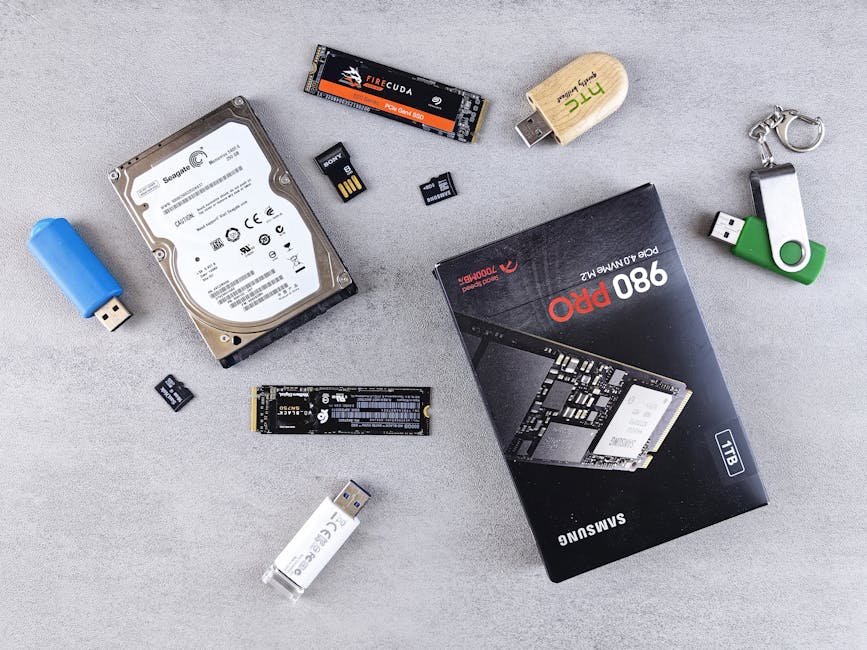

SSD vs NVMe vs HDD in 2026: What Storage Do You Actually Need?
I get asked about storage more than almost any other PC component, and honestly, I get it. The terminology is confusing, the marketing is misleading, and the price gaps have shifted so dramatically in the last two years that advice from 2024 is basically useless now. So let me break it all down for you. I’ve tested dozens of drives, filled them to the brim with game libraries, 4K video projects, and homelab data, and I’m going to tell you exactly what storage you need in 2026 — no fluff, no affiliate-bait, just practical answers.
Whether you’re building a gaming PC, setting up a NAS for bulk storage (see our Plex media server), or editing video for a living, the right drive choice can save you hundreds of dollars or shave minutes off your daily workflow. Let’s get into it.
How Each Storage Type Actually Works
Before I give you recommendations, you need to understand what you’re buying. The three categories — HDD, SATA SSD, and NVMe SSD — are fundamentally different technologies, and those differences matter more than most people realize.
HDD (Hard Disk Drive)
An HDD stores data on spinning magnetic platters. A mechanical arm physically moves across the platter to read and write data. Platters spin at either 5,400 RPM or 7,200 RPM in consumer drives, and that rotational speed plus seek time determines your real-world performance.
HDDs are slow by modern standards, but they remain unbeatable in one critical metric: cost per terabyte. In March 2026, you can pick up an 8TB HDD for around $120 — roughly $15 per terabyte. Nothing else comes close.
SATA SSD (Solid State Drive over SATA)
SATA SSDs use NAND flash memory instead of spinning platters. No moving parts means dramatically faster access times, better durability, and silent operation. However, they connect through the SATA III interface, which caps out at 600 MB/s theoretical (roughly 550 MB/s in practice). That interface was designed in 2009, so it’s a serious bottleneck for flash storage.
I still have a soft spot for SATA SSDs, but for a new build in 2026? There’s usually no reason to go SATA unless you’re filling old drive bays in a legacy system.
NVMe SSD (Non-Volatile Memory Express)
NVMe is a storage protocol designed specifically for flash memory, running over the PCIe bus instead of SATA. An NVMe drive connects directly through an M.2 slot on your motherboard and bypasses the SATA bottleneck entirely, delivering sequential read/write speeds that dwarf anything SATA can do.
NVMe drives come in different PCIe generations (see our mid-range gaming PC build), and this is where most of the confusion lives:
- PCIe Gen 3 NVMe: Up to ~3,500 MB/s sequential read. Still very capable. Budget-friendly picks live here.
- PCIe Gen 4 NVMe: Up to ~7,000 MB/s sequential read. The current sweet spot for price-to-performance.
- PCIe Gen 5 NVMe: Up to ~14,000 MB/s sequential read. The bleeding edge. Expensive, hot, and overkill for most people.
The key thing I want you to understand: NVMe is not a different type of storage from SSD. An NVMe drive is an SSD. It just uses a faster protocol and interface. When people say “SSD vs NVMe,” they usually mean “SATA SSD vs NVMe SSD.” I’ll use that shorthand too, but now you know what’s actually going on under the hood.
Speed Comparison: Real Numbers, Not Marketing Fluff
Marketing specs are peak sequential performance measured under ideal conditions. Here’s how these drives actually perform in the real world, based on my own testing and aggregated benchmarks as of early 2026.
| Metric | 7200 RPM HDD | SATA SSD | NVMe Gen 3 | NVMe Gen 4 | NVMe Gen 5 |
|---|---|---|---|---|---|
| Sequential Read | 80–180 MB/s | 500–560 MB/s | 2,500–3,500 MB/s | 5,000–7,400 MB/s | 10,000–14,500 MB/s |
| Sequential Write | 80–160 MB/s | 450–530 MB/s | 1,500–3,000 MB/s | 3,500–6,900 MB/s | 8,500–12,000 MB/s |
| Random Read (4K, QD1) | 0.5–1.5 MB/s | 30–45 MB/s | 50–70 MB/s | 70–90 MB/s | 80–100 MB/s |
| Random Write (4K, QD1) | 0.5–1.5 MB/s | 25–40 MB/s | 40–60 MB/s | 55–80 MB/s | 65–90 MB/s |
| Access Latency | 5–15 ms | 0.05–0.1 ms | 0.02–0.04 ms | 0.015–0.03 ms | 0.01–0.025 ms |
| Typical Price/TB (2TB) | $15–$30 | $40–$55 | $40–$55 | $50–$75 | $100–$160 |
A few things jump out from this table. First, look at the random 4K performance — that’s the metric that actually determines how snappy your system feels day to day. The gap between a SATA SSD and an NVMe Gen 4 drive is much smaller in random I/O than in sequential. Second, notice that Gen 3 NVMe drives have dropped to SATA SSD pricing. That’s a huge deal. There is essentially no reason to buy a SATA SSD in a new build anymore unless your system physically cannot accept an M.2 drive.
PCIe Gen 4 vs Gen 5: Is Gen 5 Worth It?
This is the question I get asked the most in 2026, and my answer hasn’t changed since Gen 5 drives launched: for the vast majority of people, no.
PCIe Gen 5 NVMe drives like the Crucial T705 and Corsair MP700 Elite deliver mind-blowing sequential numbers. But those numbers only matter when you’re moving massive files — sustained transfers of multi-gigabyte video files, scientific datasets, or virtual machine images. For gaming, productivity, and even most content creation workflows, a PCIe Gen 4 drive delivers an essentially identical experience.
Gen 5 drives also run hot, most requiring a heatsink, and they cost roughly twice as much per terabyte as Gen 4. My take: buy Gen 5 only if you’re a professional video editor working with 8K RAW footage. Everyone else should save the money and put it toward a larger Gen 4 drive.
When HDD Still Makes Sense in 2026
I’ll be blunt — if you’re building a desktop gaming PC or a standard workstation, you do not need a hard drive. Full stop. SSDs are fast enough, affordable enough, and reliable enough that the HDD boot drive is dead and buried.
But HDDs are far from obsolete. Here’s where they still earn their keep:
- NAS and Home Server: If you’re running a Synology, TrueNAS, or Unraid box and need 20+ TB of storage, HDDs are the only cost-effective option. An 8TB NAS-rated drive costs around $150–$180. The equivalent in SSD storage would cost $400+.
- Cold Storage and Archiving: Data you rarely access — tax records, old project files, photo archives — belongs on a hard drive. Cheap, dense, and perfectly adequate for data that gets touched once a year.
- Surveillance Systems: Security camera setups write data continuously 24/7. Surveillance-rated HDDs (WD Purple, Seagate SkyHawk) are designed for this workload at a fraction of SSD cost.
- Bulk Game Storage (on a budget): A secondary 4TB HDD as a game warehouse works. Move games to your SSD when actively playing, archive them on the HDD when you’re not.
The bottom line: HDDs are capacity drives now, not performance drives. Use them where gigabytes-per-dollar is the priority.
Best Storage Drives for Gaming in 2026
Storage for gaming is one of the most overhyped topics in PC hardware. DirectStorage hasn’t revolutionized game loading the way people hoped, and the real-world difference between a Gen 3 and Gen 5 NVMe drive in game load times is usually under two seconds. What actually matters is having any NVMe drive with decent random read performance and enough capacity. Here are my picks:
Best Overall Gaming SSD: WD Black SN7100 2TB
PCIe Gen 4, 7,250 MB/s sequential read, excellent random I/O, runs cool without a heatsink, and priced around $120 for 2TB. This is the drive in my personal rig. Samsung’s 990 Pro 2TB is a worthy alternative on sale, but the SN7100 edges it out on price-to-performance.
Best Budget Gaming SSD: Kingston NV3 2TB
PCIe Gen 4 (runs at Gen 3 speeds on older boards), around $80 for 2TB. Is it the fastest drive on the market? Not even close. Will you notice the difference in game load times versus a drive that costs twice as much? Absolutely not. For a budget build, this is the smart pick.
Best High-Capacity Gaming SSD: Crucial T500 4TB
If you want to install everything and never think about storage management again, the T500 4TB is a Gen 4 drive priced around $230 and it delivers consistently strong performance even when nearly full. That last part matters — some drives slow down dramatically past 80% capacity, and the T500 handles it gracefully.
Best Storage Drives for Content Creation in 2026
Content creation is where storage choices actually matter. Video timeline scrubbing depends heavily on sustained read speeds, and large Photoshop or Blender files benefit from fast writes.
Best Overall for Video Editing: Samsung 990 Pro 4TB
PCIe Gen 4, incredibly consistent sustained write performance thanks to a large SLC cache and efficient controller. The 4TB version gives you enough room to keep active projects local. Priced around $260 in March 2026. I’ve used this drive for 4K DaVinci Resolve projects and it never once made me wait.
Best for Heavy Workloads: Crucial T705 2TB
This is one of the few places where I’ll recommend a PCIe Gen 5 drive. If you’re editing 8K footage, running massive After Effects compositions (see our mechanical keyboards guide), or doing any work where you’re constantly reading and writing tens of gigabytes, the T705 delivers. Sequential reads up to 14,500 MB/s, sequential writes up to 12,700 MB/s. You’ll pay for it — around $200 for 2TB — and you’ll need a heatsink. But for professional workflows, the time savings are real.
Best Scratch Drive: Any Decent Gen 4 NVMe 1TB
A dedicated scratch drive for cache, renders, and temp files is one of the best upgrades a content creator can make. Keep your OS on one drive, project files on another, scratch data on a third. A 1TB Gen 4 drive like the WD Black SN770 (around $55) is perfect. It doesn’t need to be big, just fast and separate from your other I/O.
Best Storage for NAS and Home Servers in 2026
I run a TrueNAS box at home with six drive bays, so I have strong opinions here.
Best NAS HDD: WD Red Plus (CMR) 8TB
Around $150 per drive, CMR (not SMR), rated for 24/7 operation with a 180 TB/year workload rating. I’ve been running four of these in a RAIDZ1 array for over two years with zero issues. Seagate IronWolf is equally good at the same price.
Important note on CMR vs SMR: SMR drives are cheaper but have terrible random write performance and can cause serious problems in RAID/ZFS arrays. Always verify CMR for NAS use. The WD Red Plus is CMR. The base WD Red (non-Plus) uses SMR. This distinction has burned a lot of people.
Best NAS SSD Cache: WD Red SN700 1TB
If your NAS supports SSD caching (and most modern ones do), a dedicated NVMe cache drive massively improves responsiveness for frequently accessed files. The SN700 is specifically designed for NAS workloads with high endurance and consistent performance. Around $70 for 1TB.
Price Per TB Analysis: Where Your Money Goes in March 2026
Let me lay out the current pricing landscape so you can see exactly where each technology sits. These prices are based on mainstream 2TB models and represent typical street pricing, not cherry-picked sales.
| Storage Type | Example Drive | Capacity | Approx. Price | Price Per TB |
|---|---|---|---|---|
| HDD (NAS-rated) | WD Red Plus | 8 TB | $150 | $18.75 |
| HDD (Desktop) | Seagate Barracuda | 4 TB | $75 | $18.75 |
| SATA SSD | Samsung 870 EVO | 2 TB | $95 | $47.50 |
| NVMe Gen 3 | WD Blue SN580 | 2 TB | $85 | $42.50 |
| NVMe Gen 4 (budget) | Kingston NV3 | 2 TB | $80 | $40.00 |
| NVMe Gen 4 (high-end) | WD Black SN7100 | 2 TB | $120 | $60.00 |
| NVMe Gen 5 | Crucial T705 | 2 TB | $200 | $100.00 |
The story is clear. Budget Gen 4 NVMe drives have reached price parity with SATA SSDs — and in some cases they’re cheaper. SATA occupies a strange middle ground where it’s not faster, not cheaper, and not more compatible than NVMe in any modern system. HDDs remain roughly 2 to 3 times cheaper per terabyte than the most affordable SSDs, which still matters for multi-terabyte NAS deployments.
My Storage Recommendations by Use Case
Let me boil everything down into simple, opinionated recommendations. These are what I’d buy if I were building each type of system today.
Gaming Desktop (Most People)
- Primary drive: 2TB NVMe Gen 4 (WD Black SN7100 or Crucial T500) — ~$120
- Optional secondary: 2TB budget NVMe Gen 4 (Kingston NV3) for overflow games — ~$80
- Skip the HDD. Seriously. Two NVMe drives totaling 4TB costs $200 and covers even enormous game libraries.
Content Creation Workstation
- OS + Apps: 1TB NVMe Gen 4 — ~$55
- Project files: 4TB NVMe Gen 4 (Samsung 990 Pro or Crucial T500) — ~$250
- Scratch/cache: 1TB NVMe Gen 4 (separate physical drive) — ~$55
- Archive: 8TB HDD for completed projects — ~$120
NAS / Home Server
- Data drives: WD Red Plus or Seagate IronWolf CMR, sized to your needs
- Cache drive: 1TB NVMe (WD Red SN700) — ~$70
- Boot drive: Small SATA SSD or USB stick depending on your NAS OS
Budget Build (Under $800 Total PC)
- Single drive: 1TB NVMe Gen 4 (Kingston NV3 or WD Blue SN580) — ~$45
- Expand later when prices drop further or you find a sale
Common Mistakes I See People Make
These are the storage mistakes I see over and over:
- Buying Gen 5 for gaming. You will not notice the difference. Put that money toward a better GPU instead.
- Buying a SATA SSD in a new build. Gen 3 NVMe costs the same and is dramatically faster. Check your motherboard — it almost certainly has an M.2 slot.
- Ignoring drive endurance (TBW). Cheap no-name NVMe drives sometimes have shockingly low endurance ratings. For a drive you plan to keep for years, check the TBW (terabytes written) spec. Anything above 600 TBW for a 2TB drive is fine for consumer use.
- Using SMR drives in a NAS. I’ve seen this cause rebuild failures, abysmal write speeds, and data loss in RAID arrays. Always verify CMR for NAS use.
- Running without any backup. RAID is not a backup. Use the 3-2-1 rule: three copies, two different media, one off-site.
- Filling drives past 90% capacity. Most SSDs slow down when nearly full because the controller runs out of free blocks for wear leveling. Keep at least 10–15% free.
The Bottom Line
Storage in 2026 is simpler than the marketing makes it seem. For most people, the right answer is a 2TB PCIe Gen 4 NVMe SSD in the $80–$120 range. That covers gaming, productivity, and moderate content creation. Need more capacity? Add a second NVMe drive or an HDD depending on whether you prioritize speed or cost per gigabyte.
Gen 5 is a luxury. SATA SSDs are legacy. HDDs are for bulk storage and NAS duty. And no matter what you choose, back up your data — because the fanciest SSD in the world won’t help when your cat walks across the keyboard during a format command. Trust me, I’ve been there.
If you have questions about a specific setup or want me to sanity-check your build’s storage configuration, drop a comment below. I read every single one For more on this topic, see our budget gaming monitors..
Jiminy Whitlock is a PC hardware enthusiast and writer for IGNA Online. When he’s not benchmarking storage drives, he’s probably reorganizing his Steam library for the fourth time this month.